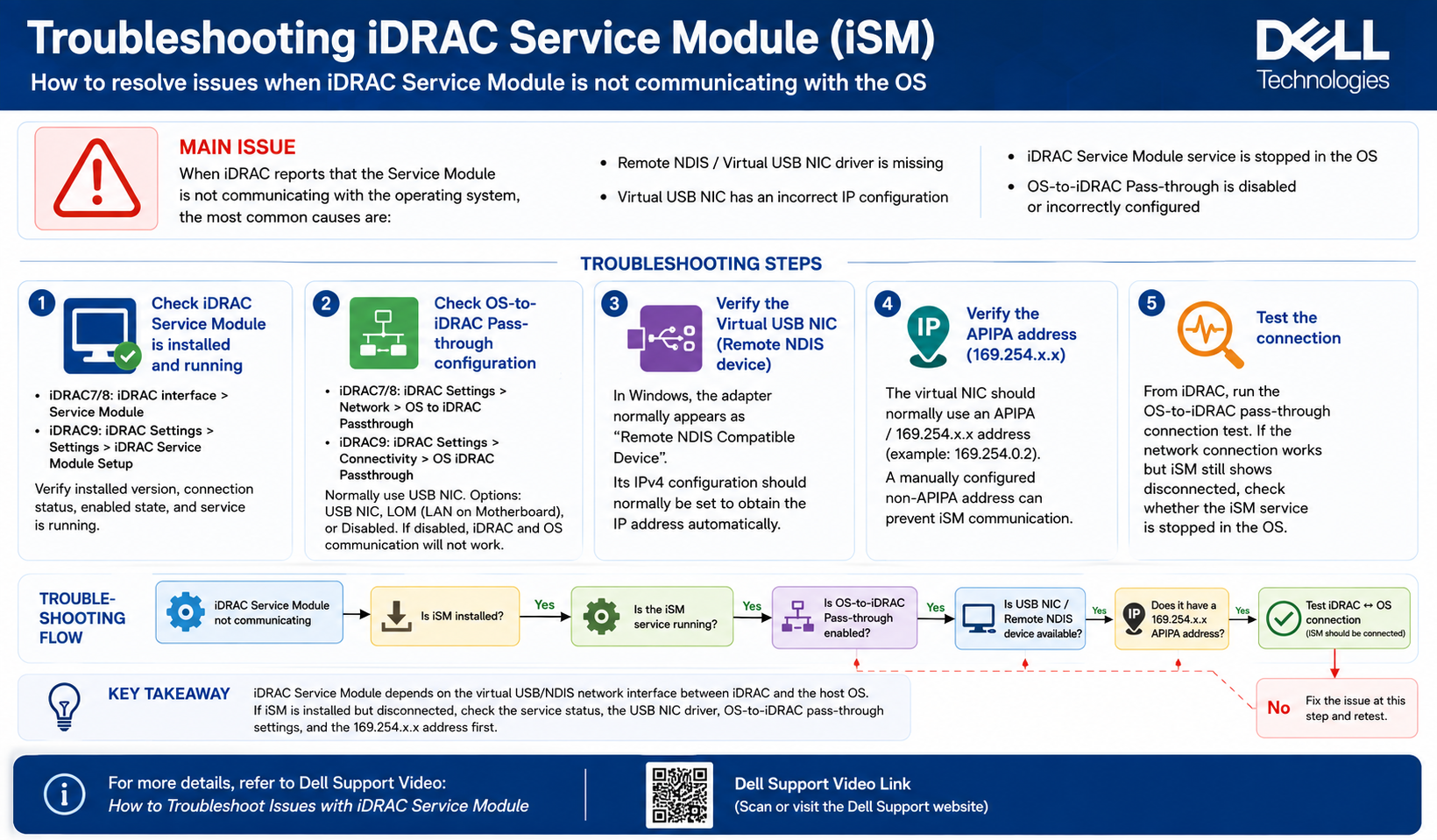
The iDRAC Service Module (iSM) is an important component on Dell PowerEdge servers because it enables communication between the operating system and the Integrated Dell Remote Access Controller, or iDRAC.
When the iDRAC Service Module is not communicating correctly, administrators may lose access to useful operating-system information and management functions from the iDRAC interface.
Fortunately, most iSM communication issues can be traced to a few common areas.
1. Verify the iDRAC Service Module
The first step is to confirm that the iDRAC Service Module is properly installed on the operating system. From the iDRAC interface, check the Service Module status and confirm:
1. iSM is installed
2. The installed version is detected.
3. The module is enabled.
4. The connection status is active.
5. The iSM service is running on the operating system.
If the service is stopped, restarting it may restore communication.
2. Check OS-to-iDRAC Pass-through
iDRAC communicates with the host operating system through a feature called OS-to-iDRAC Pass-through.
Depending on the iDRAC generation, this configuration can be found under the iDRAC network or connectivity settings.
The most commonly used communication method is:
USB NIC
Other options may include LAN on Motherboard or disabling the feature entirely.
If OS-to-iDRAC Pass-through is disabled, the iDRAC Service Module may not be able to communicate with the operating system.
3. Verify the Virtual USB Network Adapter
When USB NIC communication is enabled, the operating system creates a virtual network interface between the server OS and iDRAC.
On Windows, this may appear as:
Remote NDIS Compatible Device
Check Device Manager and network settings to make sure the adapter exists and its driver is installed correctly.
If the adapter is missing, reinstalling or updating the related driver may be required.
4. Check the IP Configuration
The iDRAC virtual USB network adapter normally uses an automatic private IP address in the following range:
169.254.x.x
This type of address is known as an APIPA address.The network interface should normally be configured to obtain its IP address automatically.
A manually configured or incorrect IP address may prevent communication between the operating system and iDRAC.
5. Test the Connection
After confirming the Service Module, USB NIC, and network configuration, test the OS-to-iDRAC connection from the iDRAC interface.
A successful connection confirms that the virtual communication channel between the operating system and iDRAC is working.
If the connection test succeeds but iSM still appears disconnected, verify the iSM service inside the operating system again.
Recommended Troubleshooting Flow
When iDRAC reports that the Service Module is unavailable, follow this sequence:
iSM communication issue → Check iSM installation → Check iSM service → Verify OS-to-iDRAC Pass-through → Check USB NIC → Verify 169.254.x.x IP address → Test connectivity
Conclusion
Most iDRAC Service Module communication issues are related to one of three areas: the iSM service, OS-to-iDRAC Pass-through configuration, or the virtual USB network adapter.
By checking these components systematically, administrators can quickly identify whether the issue is related to the application service, driver, network interface, or iDRAC configuration.
A properly configured iSM connection improves server monitoring and allows Dell PowerEdge administrators to manage operating-system information directly through iDRAC.